
 Free & Fast Shipping
 30-Day Easy Returns
 2-Year Quality Guarantee
 Lifetime Technical Support
 MINISFORUM
 MINISFORUM
A Smart PC Upgrade: Fix Network and Storage with One Card
Have you ever faced these frustrations?
- Your Gigabit network card feels agonizingly slow when transferring 4K video files, with progress bars crawling along.
- Your PC's PCIe slots are all occupied by a graphics card, sound card, or other add-ons, leaving no room for that extra SSD you need.
- You hit simultaneous bottlenecks in storage speed and network bandwidth during multitasking, crippling your productivity.
Today, we're introducing a powerful upgrade tool—the MINISFORUM ENPBA PCIe To 25G + 2NVME Card. It delivers a comprehensive, one-step upgrade for both your network and storage.

Contents:
- What is the MINISFORUM ENPBA PCIe To 25G + 2NVME Card?
- Who is this product recommended for?
- ENPBA PCIe To 25G + 2NVME Card User Guide
- ENPBA PCIe To 25G + 2NVME Card Illustrated Installation Guide (5 Steps)
- Essential Tips for Beginners (Must Read!)
What is the ENPBA PCIe To 25G + 2NVME Card?
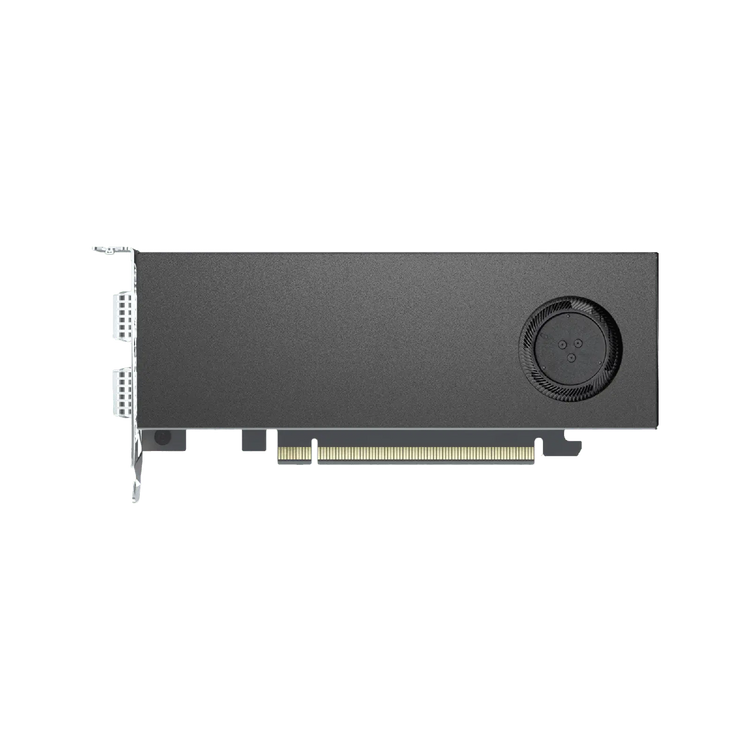
Think of it as a "performance multiplier." The core appeal of the ENPBA is its integration of the functionality of two high-speed network cards and two NVMe SSDs onto a single PCIe card. Utilizing the high-end Intel E810 XXVAM2 controller, it achieves on one board:
- Two 25GbE high-speed network ports.
- Two M.2 NVMe SSD slots.
Moreover, it boasts exceptional compatibility and a flexible design. The card is engineered to fit into any available motherboard PCIe slot, whether it's x1, x4, x8, or x16. It comes with both an 8cm short bracket and a 12cm tall bracket, making it ready for use in everything from a compact mini PC to a standard desktop case. You don't have to worry about buying the wrong size.
Two Core Upgrades to Instantly Transform Your PC into a Workstation
Network Upgrade:
A standard home Gigabit network card offers a theoretical bandwidth of 125 MB/s. By comparison, each 25GbE port on the ENPBA delivers up to 3125 MB/s—a staggering 25-fold increase.
- 4K Video Editing: Importing 100GB of RAW footage is slashed from 15 minutes down to just 40 seconds.
- NAS File Transfer: Backing up large game saves completes in a matter of seconds.
- Remote Collaboration: Stream 4K video live with zero stutter or lag.
It also features 1G/10G/25G auto-negotiation, providing future-proof flexibility. Even if your current router is only Gigabit, you won't need to replace this card when you upgrade your network infrastructure later.
Storage Expansion:
The two M.2 NVMe SSD slots on the ENPBA support the PCIe 4.0 protocol, with single-drive sequential read speeds reaching up to 7000 MB/s (theoretical)—approximately 10 times faster than a traditional SATA SSD. This ample performance headroom makes it more than capable for storing project assets, serving as a high-speed cache disk, or setting up a local compact storage node.
- High-Speed Cache Drive: Open large project assets in Photoshop/Premiere Pro instantly.
- Project Asset Vault: Easily mount two 4TB NVMe SSDs to store up to 800 hours of 4K video.
- Local NAS: Combine it with the 25GbE ports to create a high-speed home data center.
Whether you're a creative professional in video production or 3D design, a small studio needing to upgrade its server, or a PC enthusiast looking to revitalize an older system, the ENPBA expansion card meets the need. Instead of spending a fortune on a complete system replacement, this affordable single-card upgrade delivers both blazing-fast network speeds and massive storage capacity simultaneously, maximizing your cost-effectiveness.
Choosing the Right SSD Form Factor
Minisforum mini PCs commonly feature M.2 2280 NVMe slots. Key points to consider:
- NVMe PCIe 4.0 delivers 5,000+ MB/s read speeds
- SATA SSDs are limited to ~550 MB/s but cost less
- Check if your model has a second M.2 slot for extra storage
Three Thoughtful Design Details That Speak to Professionalism
· Cooling Without Compromise: A built-in silent fan ensures sustained stability even during prolonged, high-load operation, preventing thermal throttling and performance drops.
· Simplified Power Delivery: It draws power directly from the PCIe slot, requiring no additional power cables. Simply insert, secure the card, install the driver, and it's ready to use.
· Enhanced Compatibility: Support for PCIe x1, x4, x8, and x16 slots guarantees a seamless fit across a wide range of systems, from compact Mini PCs to full-sized workstations.

Who is this product recommended for?
- Video Creators: Solves the pain points of slow project asset transfers and insufficient storage.
- PC Gamers / Enthusiasts: Enables a high-speed game drive and optimizes the network environment for online play.
- Small Studios: Facilitates building a high-speed NAS, conserves valuable PCIe slot resources, and reduces upgrade costs.
ENPBA PCIe Card User Guide
I. Differences Between AMD and Intel Platforms
(1) For AMD Platforms:
- With no SSD installed (empty slot): The network port functions will operate normally.
- With SSD(s) installed: You must set the PCIe Lanes to "X8X4X4" in the BIOS for the network ports to function properly.
(2) For Intel Platforms:
Whether SSDs are installed or not, the network functionality will operate automatically and normally. No BIOS configuration for lane bifurcation is required.
II. Functionality by Slot Type (Applicable to both AMD and Intel)
- Installed in an X4 slot: Only the two 25G network ports are supported.
- Installed in an X8 slot: Only the two 25G network ports are supported.
- Installed in a non-bifurcation-capable X16 slot: Only the two 25G network ports are supported.
- Installed in a bifurcation-capable X16 slot: Can be configured in BIOS as "X8 X4 X4" or "X4 X4 X4×4" to support both the two 25G network ports and two SSDs.
※ Important Note for Using ENPBA with MS-02 Ultra:
The card included with the MS-02 Ultra is designed for its dedicated private slot. The ENPBA is an add-on card sold separately.
If you wish to use the ENPBA with an MS-02 Ultra, it must be installed in the PCIe 5.0 slot only. Installing the ENPBA into the MS-02 Ultra's private slot will cause a boot failure.
Tutorial Video: How to Change PCIe Lanes to "X8 X4 X4" in BIOS
ENPBA Expansion Card Illustrated Installation Guide (5 Steps)
I. Tools to Prepare (Get Ready in Advance)
- The Main Component: ENPBA Expansion Card (includes both a short 8cm and a tall 12cm bracket—choose based on your case).
- Essential Tool: Phillips-head screwdriver (standard for PC assembly).
- Optional Accessory: M.2 NVMe SSD (purchase in advance if you intend to upgrade storage).
- Auxiliary Tool: Anti-static wrist strap (if unavailable, simply touch a metal desk or frame to discharge static electricity and prevent component damage).
II. Installation Steps (with Illustrations & Key Reminders)
Step 1: Power Down and Disconnect – Safety First
- Shut down your computer and disconnect the power cord from the outlet and the power supply unit. This step is crucial to prevent electric shock or hardware damage.
- Wait for 30 seconds to allow the internal capacitors to discharge. Simultaneously, touch a metal part of the computer case to ground yourself and dissipate any static electricity.
- Place the computer case on a stable, flat surface with the side panel facing you for easy access during the next steps.
Step 2: Open the Case and Locate the PCIe Slot
- Use your Phillips-head screwdriver to remove the screws securing the side panel of your computer case (typically 2-4 screws). Place them in a small container to avoid losing them.
- Open the side panel. Look at the motherboard and identify the “long, rectangular slot with a latch” — this is a PCIe slot (often labeled as PCIe x1/x4/x8/x16 on the motherboard). The ENPBA card is compatible with any of these; simply choose an empty one.
- Locate the corresponding position on the case's rear I/O panel. Remove the screw securing the blank expansion slot cover (this cover must be removed to install the expansion card).
Step 3: Insert and Secure the Expansion Card
- Take out the ENPBA expansion card. Align it with the chosen PCIe slot, ensuring the card’s PCIe edge connector matches the slot and is oriented correctly (do not insert it backwards).
- Apply firm, even pressure to insert the card vertically into the slot. Push down until the PCIe edge connector is fully seated and you hear a distinct “click” (the sound of the retention latch locking into place), indicating it is properly installed.
- Use the screw you removed earlier to secure the card’s bracket to the computer case. Tighten it firmly to prevent potential loosening and errors during operation.
Step 4: Install the M.2 SSD (Optional – Only if Adding Storage)
- Locate the two M.2 slots on the expansion card (labeled “M.2 NVMe”). Remove any protective film from the SSD's PCIe edge connector.
- Insert the SSD into the slot at a slight angle (with the PCIe edge connector facing inwards), then gently press it down until it lies flat against the card.
- Use the small screw provided with the expansion card to secure the opposite end of the SSD to the card (this prevents loosening due to vibration). Note: If the screw is missing, the SSD can still be used as long as it is firmly seated in the slot.
Step 5: Close the Case and Start Using
- Final Check: Ensure the expansion card is firmly seated, all screws are tightened, and no loose cables are obstructing the cooling fan.
- Reassemble: Replace the computer's side panel, secure it with the screws, and reconnect the power cord.
- Power On: Once powered on, your computer will automatically detect the expansion card.
Essential Tips for Beginners (Must Read!)
- Final Check: Ensure the expansion card is firmly seated, all screws are tightened, and no loose cables are obstructing the cooling fan.
- Reassemble: Replace the computer's side panel, secure it with the screws, and reconnect the power cord.
- Power On: Once powered on, your computer will automatically detect the expansion card.
MINISFORUM ENPBA PCIe Card Installation Video (Compatible with MS-A2)
If you're looking for a smart PC upgrade, consider giving the MINISFORUM ENPBA PCIe Card a try. It can breathe new life into your computer.
0 comments
SUBMIT COMMENT