
 Free & Fast Shipping
 30-Day Easy Returns
 2-Year Quality Guarantee
 Lifetime Technical Support
Deploying Ceph on MINISFORUM MS-01: A Homelab Guide
Installing Ceph Squid (19.2) on five MINISFORUM MS-01 nodes with CentOS Stream 9 – encrypted storage and performance baseline.

1. What This Article Covers
I installed Ceph Squid (version 19.2) on five MINISFORUM MS-01 nodes running CentOS Stream 9. This post walks through the setup, how I encrypted all storage drives, and the performance baseline I measured. If you're building a home storage cluster, this should give you a clear roadmap.

✅ Key outcome:A healthy 5‑node Ceph cluster with 10 encrypted OSDs, ready for real workloads.
2. Background and First Steps
I originally installed Ceph in early March 2025 (version 19.2.1). By September 6, I had upgraded to 19.2.3 through the dashboard – both upgrades were smooth and hassle‑free. On very hot summer days, I sometimes power off these nodes to keep my workspace below 40°C.
- Hardware: 5x MINISFORUM MS-01 (each with two SSDs)
- OS: CentOS Stream 9
- Ceph version: Squid 19.2.3
📋 Summary: The cluster has been running well, with easy GUI upgrades.
3. Bootstrapping the First Node
On the first node (ms-01-01), run the standard cephadm bootstrap command, specifying the monitor IP and cluster network:
cephadm bootstrap --mon-ip 192.168.40.151 --allow-fqdn-hostname --cluster-network "192.168.30.0/24"
This creates a working single‑node cluster, generates SSH keys, and gives access to the Ceph dashboard.
✅ Result: A functioning cluster ready to accept more hosts.
4. Adding the Other Four Nodes
I distributed the bootstrap SSH public key to nodes ms-01-02 through ms-01-05:
ssh-copy-id -f -i /etc/ceph/ceph.pub root@ms-01-02
Then add each host with the_admin label:
ceph orch host add ms-01-02.storage.pcfe.net 192.168.40.152 --labels _admin
Later, more labels (mon,mgr,osd,mds) can be added via dashboard or CLI.
✅ Result: Five hosts in the cluster, each with appropriate roles.
5. Encrypting All OSDs (The Most Important Part)
Goal: Use all unused SSDs on the five nodes, and encrypt every OSD with LUKS. The default--all-available-devicesoption does NOT enable encryption, so disable it first:
ceph orch apply osd --all-available-devices --unmanaged=true
Create a custom drive specification (YAML) withencrypted: true. Examplems-01-SSD-as-OSD-spec.yml:
service_type: osd
service_id: osd_spec_MS-01_SSDs
placement:
host_pattern: 'ms-01-*'
encrypted: true
data_devices:
rotational: 0
Apply the specification:
ceph orch apply -i ms-01-SSD-as-OSD-spec.yml
After a rolling replacement of non‑encrypted OSDs, all 10 OSDs (2 per node) become encrypted.
Why encrypt? When a cheap consumer NVMe drive wears out, you can recycle it without worrying about data leaks. The performance hit from LUKS is very small.
🔒Note: This does not protect against theft of a whole node – that's a different risk. But for drive disposal, it gives peace of mind.
✅ Result: All OSDs are now encrypted at rest.
6. Dashboard Redirect to FQDN
I enabled mgr/dashboard/redirect_resolve_ip_addr so that accessing the dashboard always uses a fully qualified domain name instead of an IP address.
ceph config set mgr mgr/dashboard/redirect_resolve_ip_addr True
✅ Result: Dashboard always redirects to the FQDN.
7. Creating Pools and a CephFS Volume
I created two pools for benchmarking: testbench and rbdbench, each with 32 placement groups. Then I created a CephFS volume named cephfs with automatic placement of MDS daemons.
ceph osd pool create testbench 32
ceph osd pool create rbdbench 32
ceph osd pool application enable rbdbench rbd
Then I created a CephFS volume named cephfs with automatic placement of MDS daemons.
ceph fs volume create cephfs --placement="label:mds"
📊 Result: Five pools total (.mgr,testbench,rbdbench,cephfs.meta,cephfs.data). All pools are replicated three times and use SSDs.
8. Performance Baseline (For Future Comparison)
I ran rados bench and rbd bench to get numbers before any network upgrades. The current public network is 1 GbE.
Rados benchmark (4MB objects, 900 seconds, 16 concurrent ops)
- Sequential write: 128.6 MB/s, 32 IOPS, avg latency 0.50 s
- Sequential read: 128.5 MB/s, 32 IOPS, avg latency 0.50 s
- Random read: 128.4 MB/s, 32 IOPS, avg latency 0.50 s
RBD benchmark (4K random, 80% read, 5GB total, 16 threads)
- Total throughput: 84 MiB/s (67 MiB/s read, 17 MiB/s write)
- IOPS: ~21,388 ops/sec (17,116 reads, 4,272 writes)
💡 Why this matters: If I later upgrade to 2.5 GbE switches, these numbers will tell me whether the network becomes the bottleneck.
9. Current Cluster State (as of September 6, 2025)
Health: HEALTH_OK
- 3 MONs, 3 MGRs (1 active), 1 active MDS + 1 standby
- 10 OSDs (all up and in)
- Raw storage: 18 TiB SSD, only 7.8 GiB used (0.04%)
- 5 pools, 337 placement groups, all active+clean
✅ Summary: The cluster is healthy and ready for real workloads.
-
MINISFORUM MS-01 Workstation 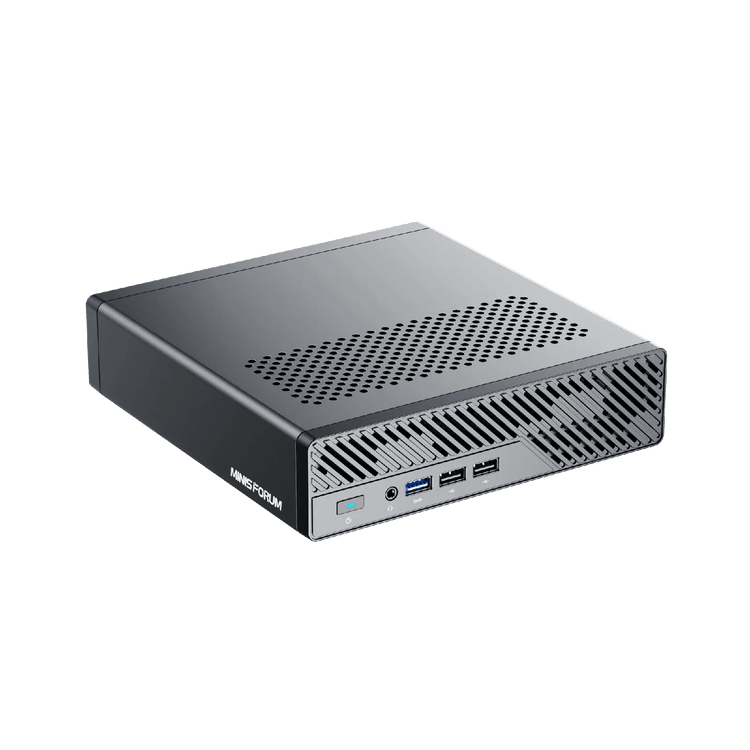
 Save $170.00
MINISFORUM MS-01 Workstation
Intel® Core™ i9-13900H | Intel® Iris® Xe Graphics | DDR5-5200MHz Dual Channel, up to 64GB
Precio de oferta $669.00 Precio habitual $839.00


❗️Republished Article
This article is republished from the website: pcfe's blog
Original title:Minisforum MS-01, CentOS Stream 9, Ceph Squid install
Author:pcfe
Original link: https://blog.pcfe.net/hugo/posts/2025-09-06-minisforum-ms-01-ceph/
0 comentarios
SUBMIT COMMENT