
 Free & Fast Shipping
 30-Day Easy Returns
 2-Year Quality Guarantee
 Lifetime Technical Support
How to Choose the Right RAM & SSD for Mini PC?
Choosing the right RAM and SSD for your mini PC is essential to unlock its full potential. With compact designs and powerful CPUs, mini PCs demand memory and storage solutions that enhance performance and multitasking abilities.
Whether you’re a gaming enthusiast, creative professional, or office user, understanding how to select compatible RAM and SSD components ensures smooth operation, faster boot times, and a future-proof setup. This guide will help you navigate capacity, speed, form factors, and compatibility to make informed decisions for your mini PC in 2026.

Part 1: RAM Basics – What You Need to Know
Understanding RAM and Its Importance in Mini PCs
RAM, or Random Access Memory, is the short-term memory your mini PC uses to handle ongoing tasks and data processing. It directly impacts how smoothly your system runs multiple applications simultaneously and how quickly it responds under different workloads.
Selecting the right RAM capacity and speed is crucial because more RAM allows better multitasking and faster data access, while higher speeds enhance responsiveness. Compatibility is also key, as not every RAM module fits every mini PC motherboard or CPU, influencing your upgrade options and overall performance.
Types of RAM Compatible with Mini PCs
Mini PCs typically use DDR4 or the newer DDR5 RAM types, each with distinct speed and efficiency advantages. The form factor matters too; most mini PCs leverage SO-DIMM modules designed for compact systems, unlike larger desktop RAM. Frequency (measured in MHz) determines RAM speed, which needs to match the motherboard and CPU support for optimal performance.
Ensuring your chosen RAM is compatible with your mini PC’s specifications not only guarantees stability but also preserves upgrade potential as advanced applications demand faster memory.
How Much RAM Do You Need for Your Mini PC?
The right RAM size depends heavily on your mini PC usage:
• For basic tasks like web browsing and document editing, 4GB to 8GB of RAM suffices to offer smooth performance without breaking the bank.
• For multitasking and light productivity, 8GB to 16GB is a good choice, enabling multiple applications to run without lag.
• Creative professionals handling media editing or light gaming benefit from 16GB of RAM, providing capacity for more complex tasks. And here's the good news—most of our everyday productivity models now come with 16GB to 32GB as standard, so you get that extra headroom without breaking the bank:
-
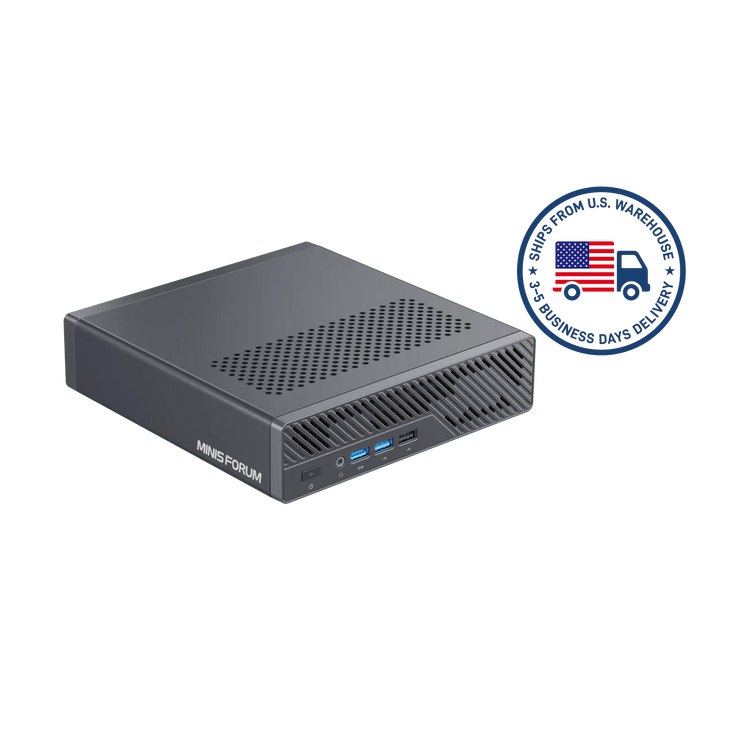
MINISFORUM MS-A2 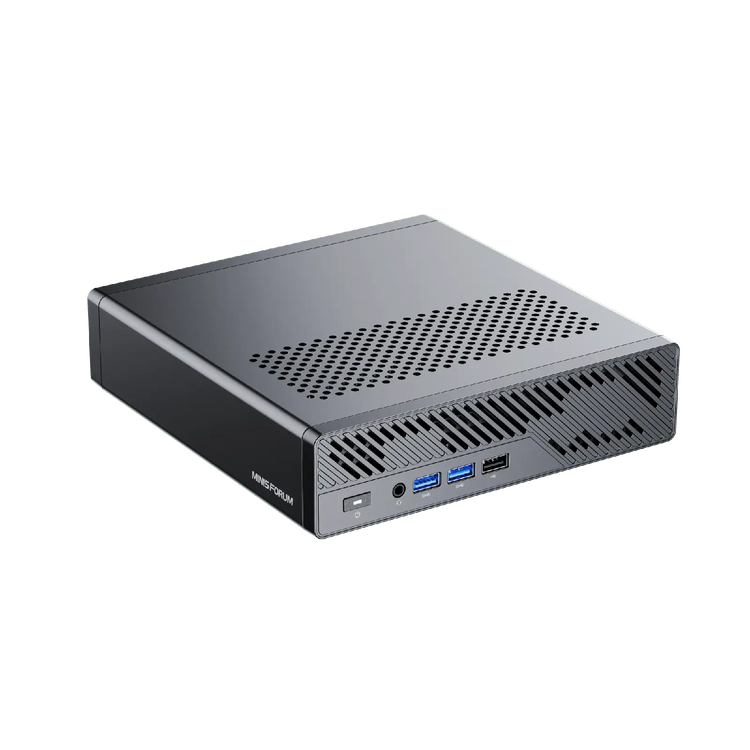
 Save $200.00
MINISFORUM MS-A2
AMD Ryzen™ 9 9955HX | AMD Radeon™ 610M | Up to 96GB DDR5 (SO-DIMM х2)
Precio de oferta $799.00 Precio habitual $999.00 -
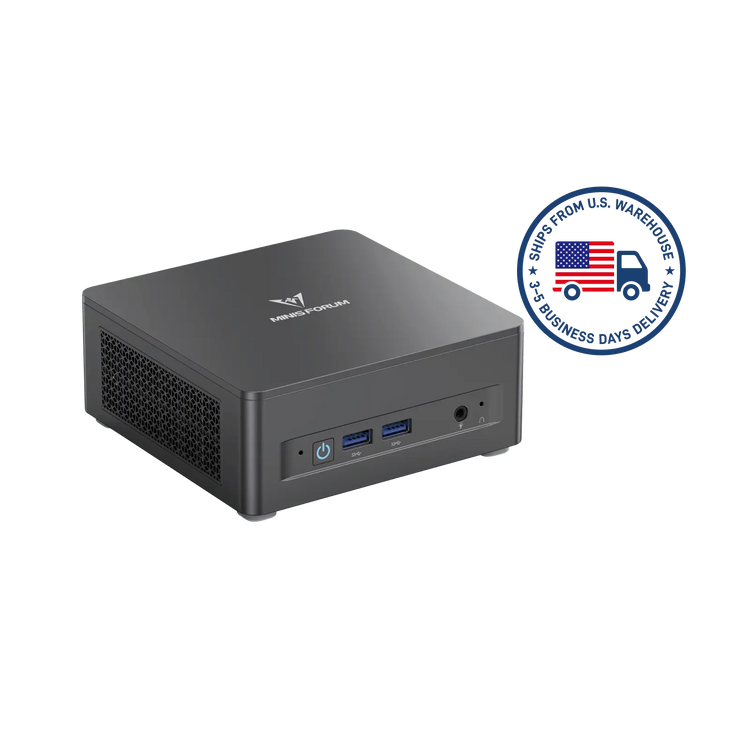
MINISFORUM MS-01 Workstation 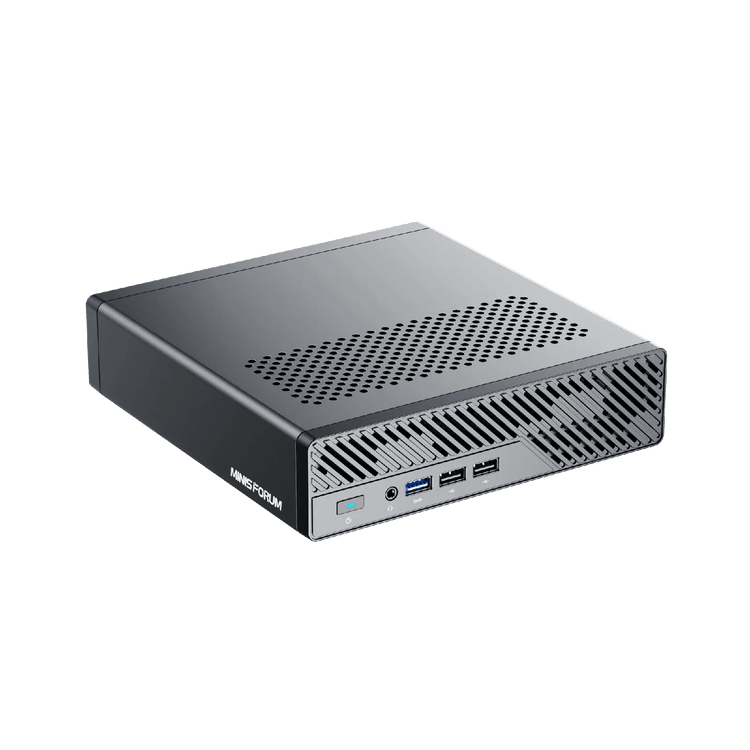
 Save $164.00
MINISFORUM MS-01 Workstation
Intel® Core™ i9-13900H | Intel® Iris® Xe Graphics | DDR5-5200MHz Dual Channel, up to 64GB
Precio de oferta $655.00 Precio habitual $819.00 -
MINISFORUM UM760 Slim 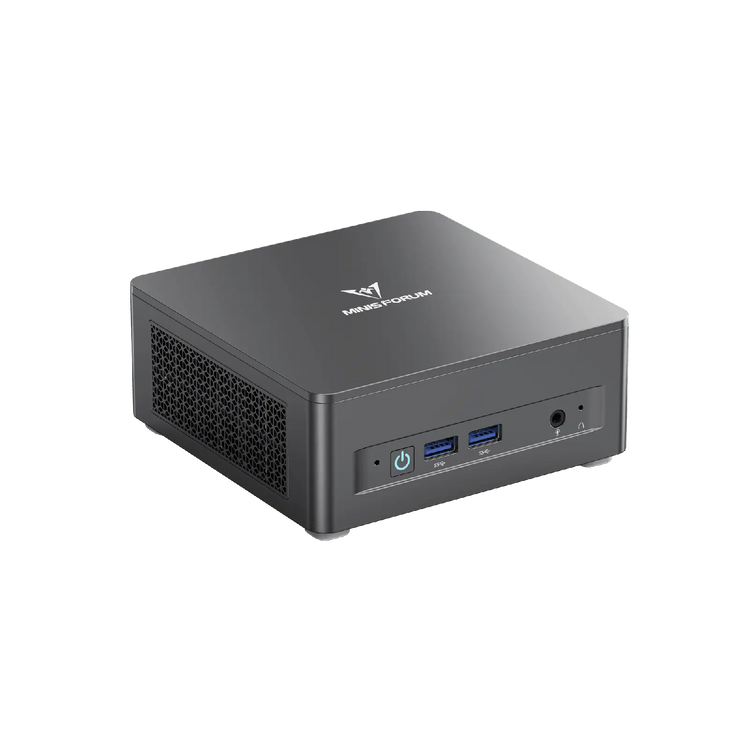 Save $152.00
MINISFORUM UM760 Slim
AMD Ryzen™5 7640HS | AMD Radeont™ 760M | Dual-channel DDR5, Up to 96GB
Precio de oferta $607.00 Precio habitual $759.00 -
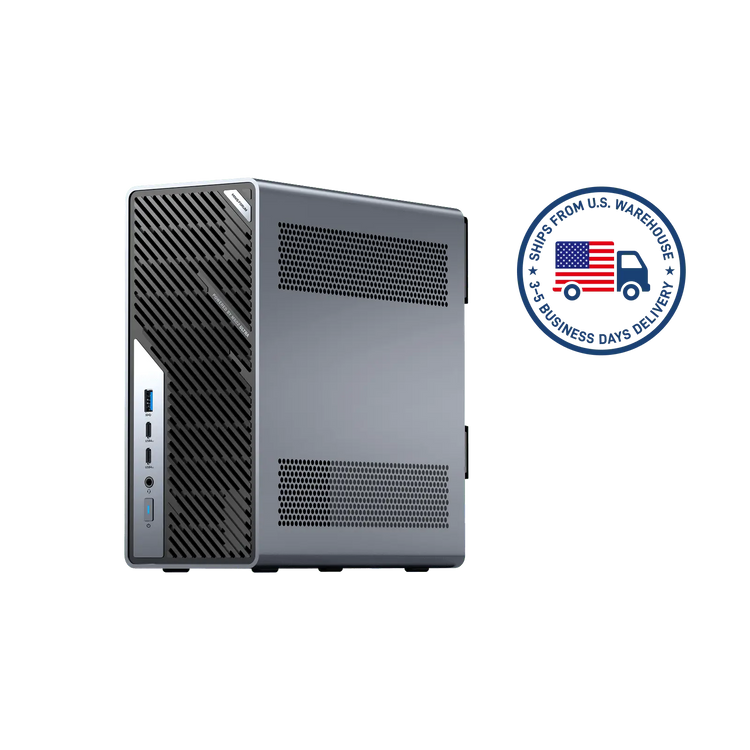
MINISFORUM MS-02 Ultra 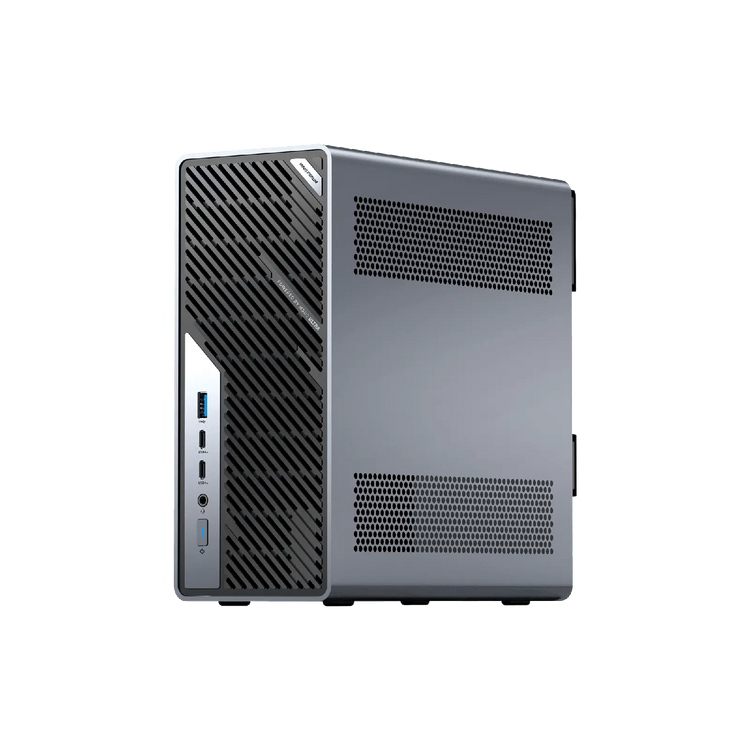
 Save $290.00
MINISFORUM MS-02 Ultra
Intel® Core™ Ultra 9 285HX | Intel® Graphics | 4 x DDR5 SODIMM slots
Precio de oferta $1,159.00 Precio habitual $1,449.00



• Gamers and users running demanding, resource-intensive software should consider 32GB or more to future-proof their setup and ensure optimal gaming performance and data processing speed.
Balancing budget considerations with memory requirements will help you select the right size.
Not sure which configuration suits your workflow best? For users who need room to grow, the MINISFORUM MS-02 Ultra workstation takes memory support to the next level. It features 4 x DDR5 SODIMM slots that support up to 256GB of high-speed memory, with ECC support available for mission-critical data integrity. Whether you're building a rig for daily office work or planning for future heavy multitasking needs, the MS-02 Ultra provides the scalability you're looking for.
Factors to Consider When Choosing RAM for a Mini PC
When selecting RAM, consider capacity, speed (frequency), latency, and whether to use dual-channel or single-channel setups. Larger capacity improves multitasking and performance in heavy tasks, while higher RAM frequency boosts performance responsiveness, impacting gaming and complex applications.
Dual-channel configurations double data paths, enhancing transfer speeds compared to single-channel. Thermal management is crucial too, especially in mini PCs with limited airflow; using RAM with efficient heat spreaders or ensuring good chassis cooling can prevent throttling.
Always verify motherboard and BIOS support for your RAM choice to avoid compatibility issues.
This republication has been authorized by the original author. For further republication, please contact the original author.
The views and opinions expressed in this article are those of the author and do not necessarily reflect the official position of Minisforum.
Part 2: SSD Storage – The Other Half of Performance
Understanding Mini PC Storage: Why SSD Matters Alongside RAM
While RAM handles active data processing, SSDs serve as the main storage medium, storing your operating system, applications, and files. The speedy file read/write capabilities of SSDs complement RAM’s quick access to data, significantly improving system boot times, application launches, and overall system responsiveness.
Upgrading both RAM and SSD often yields the best performance boost for mini PCs. Without adequate SSD storage, even large RAM capacities can’t prevent slow data transfer and load times, highlighting the need for balanced memory and storage upgrades for optimal mini PC operation.
Types of SSDs Suitable for Mini PCs
Mini PCs commonly support SATA III and NVMe (PCIe 3.0 or 4.0) SSD interfaces:
• SATA III SSDs use the 2.5-inch form factor or M.2 slots, offering reliable performance suitable for basic use and budget considerations.
• NVMe SSDs, typically in the M.2 form factor, provide much higher data transfer speeds due to PCI Express lanes, ideal for advanced data analysis, gaming, and multimedia applications.
The endurance ratings and NAND flash type—TLC (Triple-Level Cell) or QLC (Quad-Level Cell)—are also factors; TLC SSDs offer better reliability and longer lifespan, while QLC provide higher storage density at lower cost. Choose SSDs according to your mini PC design, budget, and usage needs.
Part 3: How to Choose – Matching Specs to Your Needs
Evaluating RAM and SSD Capacity Based on Usage Needs
Assessing the right memory and storage capacities depends on your workload intensity:
• For basic tasks and light multitasking, 8GB of RAM paired with a 256GB to 512GB SSD works well to deliver smooth performance for everyday use.
• For gaming, media editing, and running multiple applications simultaneously, opt for 16GB or more RAM combined with a 512GB to 1TB SSD to ensure balanced performance and ample storage space.
• For heavy tasks or specialized usage—such as virtual machines or advanced data analysis—32GB+ RAM and a 1TB+ NVMe SSD are recommended to handle fast sequential read speeds and demanding workloads.
Evaluate cost against performance needs to find your optimal setup. To see how these configurations perform in real-world scenarios, you can explore the MINISFORUM Gaming & Creation series. Models like the AtomMan G7 Pro (with Intel Core i9) or G1 Pro (with AMD Ryzen 9) are engineered with perfectly balanced high-speed RAM and SSD options—ready to handle everything from 4K editing to AAA gaming right out of the box.
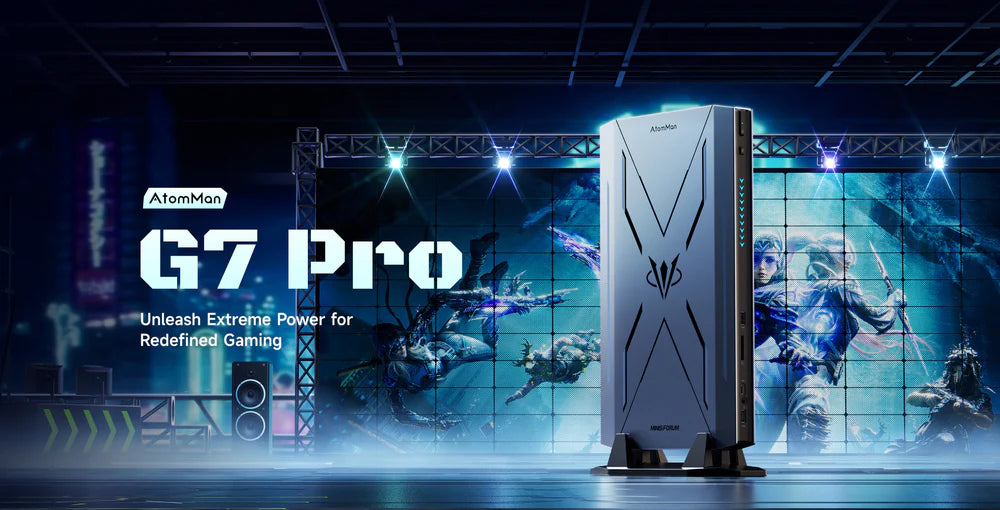
MINISFORUM AtomMan G7 Pro
Intel Core i9 14900HX · RTX 5070 · Built for 4K Editing & AAA Gaming
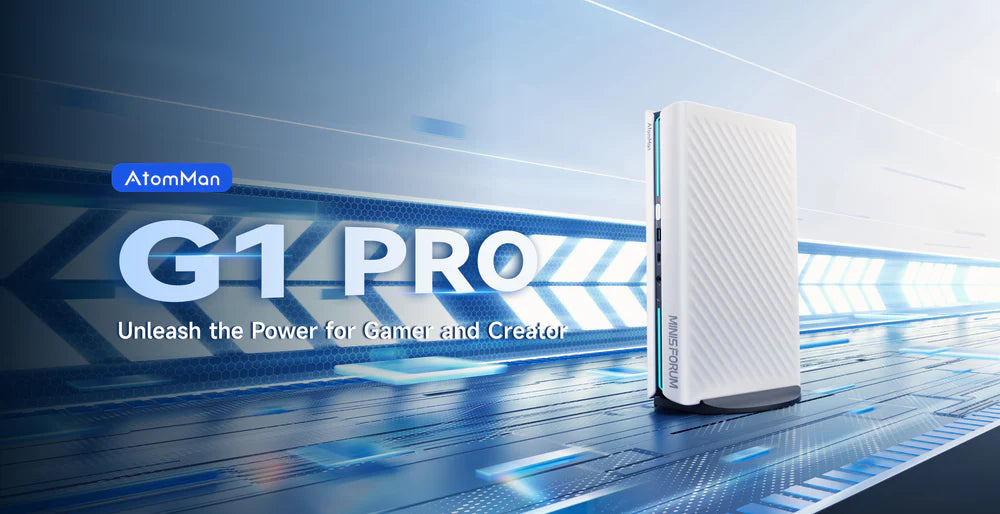
MINISFORUM AtomMan G1 Pro
AMD Ryzen 9 8945HX · Desktop RTX 5060 · 245W Performance in Compact Form
How to Check Compatibility for RAM and SSD Upgrades
To ensure successful upgrades, verify your mini PC's supported RAM types, maximum capacity, and speed limits by reviewing the motherboard manual or manufacturer specifications.
BIOS updates might expand compatibility, so check for the latest versions. For SSDs, consider physical form factors—M.2 slots vs 2.5-inch bays—and confirm slot availability.
Keep in mind that some upgrades may affect your mini PC’s warranty terms, so read warranty policies carefully before proceeding to avoid voiding coverage.
Part 4: How to Upgrade – A Practical Guide
Step-by-Step Guide to Upgrading RAM and SSD in Your Mini PC
- Preparation: Power off your mini PC and disconnect all cables. Open the case carefully following your model's instructions; many mini PCs have accessible designs with easy entry panels.
- Install RAM: Locate the RAM slots and remove existing modules gently by unlocking the retention clips. Insert the new RAM by aligning the notch and pressing firmly until it clicks.
- Install SSD: For SSD, identify whether to replace a 2.5-inch drive or install an M.2 NVMe SSD; unscrew and disconnect the old drive if applicable. Install the new SSD securely.
- First Boot: After closing the case, power on and enter BIOS to verify RAM recognition and boot priority. Format the new SSD within your operating system and test system performance to confirm successful upgrades.
🎥Check out the full video tutorial below for a step-by-step walkthrough.
Tips to Enhance Mini PC Performance Beyond RAM and SSD
Beyond hardware upgrades, optimize your mini PC by managing startup programs and reducing unnecessary background processes to free resources.
Good thermal management is vital to prevent CPU and RAM throttling in tight mini PC chassis—ensure your cooling solutions like liquid metal cooling or metal chassis ventilation are effective.
Keep your drivers and firmware updated for improved compatibility and stability. If your mini PC supports it, consider GPU or CPU upgrades to further enhance gaming and multimedia performance, ensuring your mini PC remains capable for future software demands.
Part 5: FAQs and Final Advice
Common Questions About RAM for Mini PCs
What kind of RAM goes into a mini PC?
Most mini PCs use SO-DIMM DDR4 or DDR5 RAM modules designed for compact spaces. Ensuring the RAM speed and capacity match your motherboard and CPU specifications is vital for compatibility and performance.
Do I need both SSD and RAM?
Yes, both are essential. RAM manages active data for quick access, while SSDs provide fast storage for your system and files. Upgrading both leads to the best system responsiveness and boot speeds.
What pitfalls should I avoid?
Avoid common pitfalls by verifying compatibility before purchase and carefully handling components. Also, review warranty terms since unauthorized upgrades may void coverage.
Making the Right RAM Choice for Your Mini PC in 2026
If you're considering an upgrade, now is a great time to take a closer look. During this Spring promotion, selected MINISFORUM barebone systems are also included in the offers.
For users who want to stay within budget while experiencing the performance gains of the latest platform, this presents a more accessible opportunity to upgrade. If you already have SSDs that can be reused, or if you're planning to pair the system with your own choice of memory and storage, picking up a 0+0 version at the promotional price can help further reduce the overall cost of upgrading. This also represents a more efficient approach to upgrading under current market conditions.
It's worth noting that promotional pricing is temporary. Once the promotion ends, relevant products will return to their regular prices. Given the ongoing volatility in component costs, the possibility of future price changes remains.
For users with a clear upgrade plan in mind, securing a suitable platform configuration during the promotion period is a more stable and more predictable choice.
Learn more about MINISFORUM Spring Sale-2026


MINISFORUM Spring Sale--2026
0 comentarios
SUBMIT COMMENT